How to Mass Delete Text Messages on Your iPhone & iPad

A lifelong tech enthusiast, with experiences ranging from jailbreaking his iPhone to building his own gaming PC, Rhett specializes in maintaining privacy in a digital world and iPhone security.
Learn More A lifelong tech enthusiast, with experiences ranging from jailbreaking his iPhone to building his own gaming PC, Rhett specializes in maintaining privacy in a digital world and iPhone security.
Learn MoreLet's go over how to delete messages on your iPhone; it's easier than you think. You can delete one, two, or as many messages as you want with just a few taps. So, if you're ready to clear out your old messages, read on to find out how to delete text messages on your iPhone.
Why You'll Love This Tip
- Learn how to erase iPhone texts to quickly get rid of messages you don’t need anymore.
- Save storage space on your iPhone by erasing messages you don't want to save anymore.
- Learn how to delete individual text messages without deleting the whole conversation.
How to Delete Text Messages on Your iPhone & iPad
System Requirements
This tip works on iPhones running iOS 9 or later, and was tested on an iPhone 17 Pro running iOS 27.2. Find out how to update to the latest version of iOS.
If you find your messages getting too cluttered, the best thing you can do is delete messages you don’t need anymore. Let’s go over how to delete texts on your iPhone and iPad:
- Open any text conversation in the Messages app. Then, touch and hold any message in that thread; it can be text, photos, videos, stickers, and more.
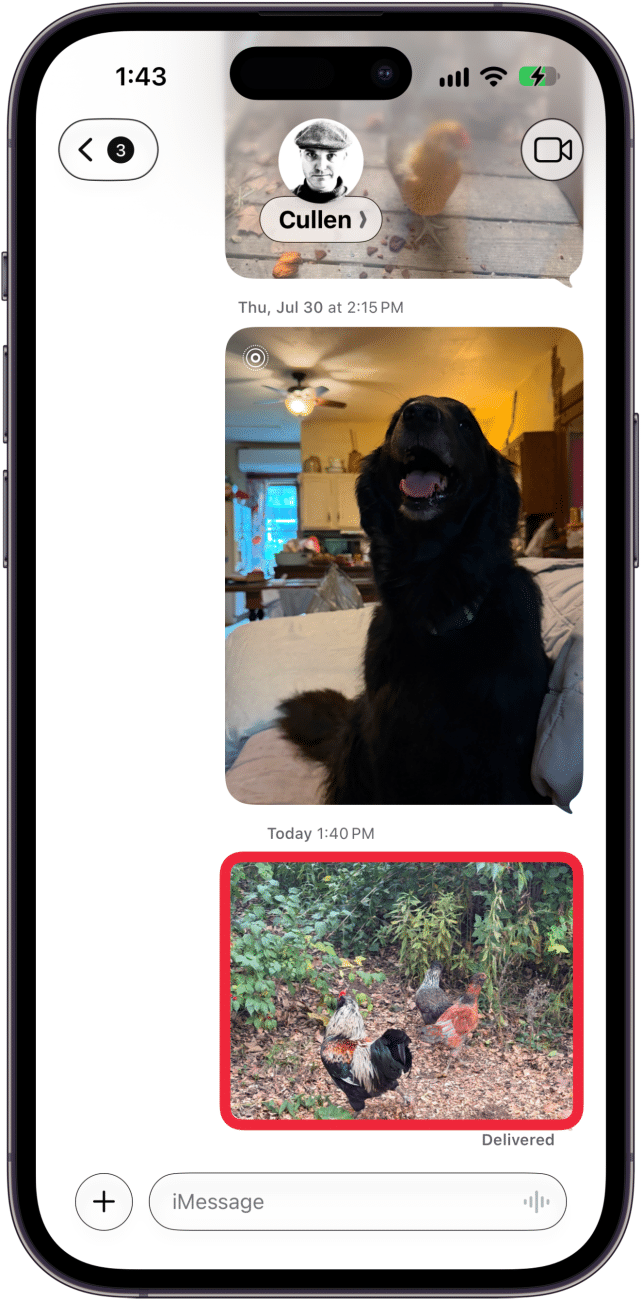
- Tap More…
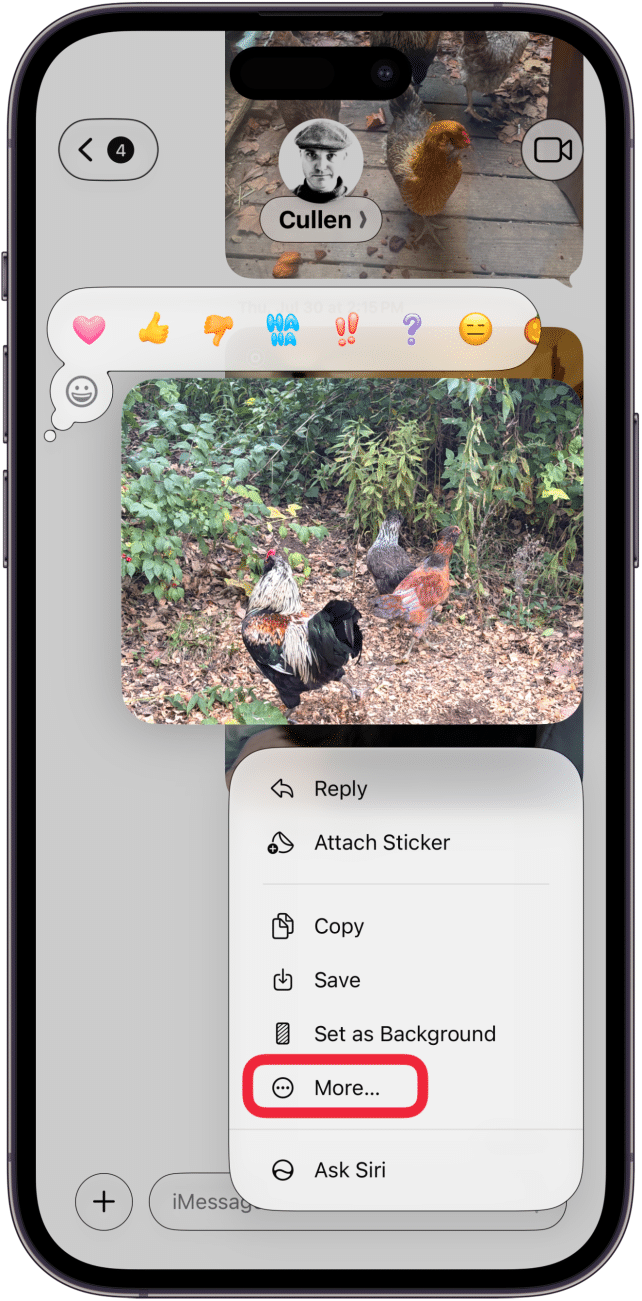
- You’ll see circles slide in from the left edge of the screen for each message. The circle to the left of the message you tapped More on will turn blue with a checkmark in the middle. You can tap the blank circles to the left of other messages to check off as many messages as you want.

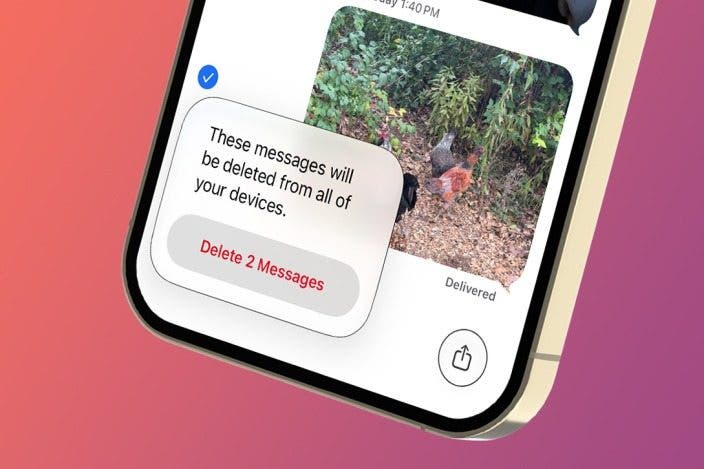
- Tap the trash can icon in the lower left.
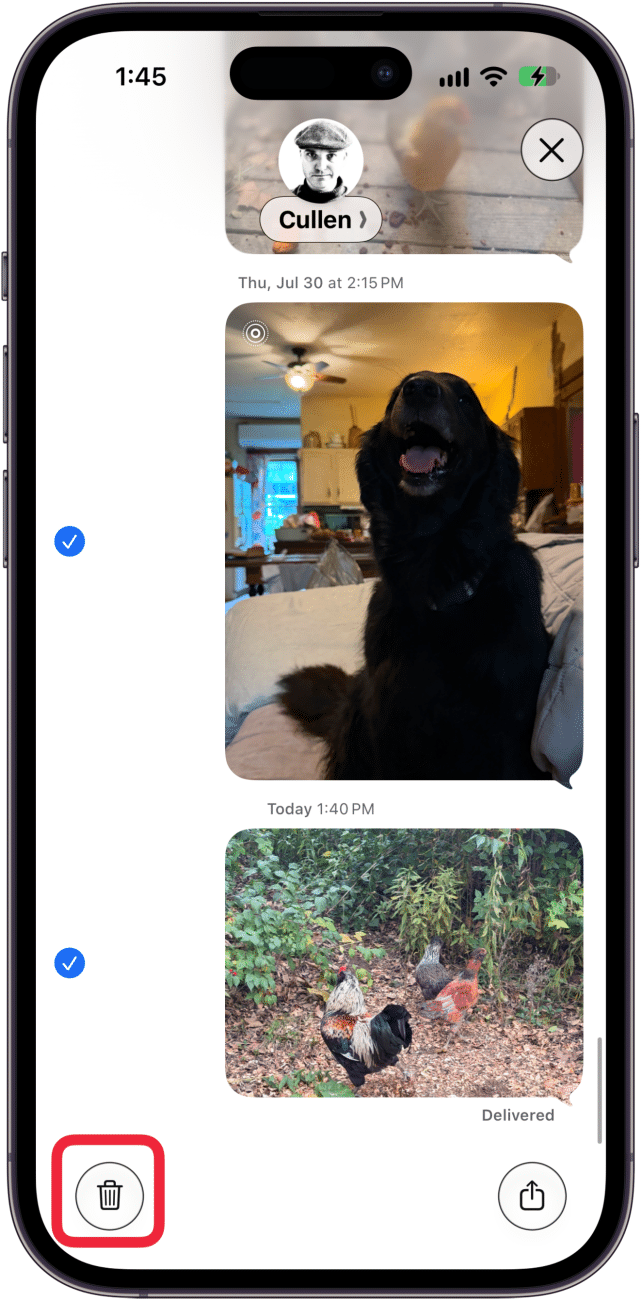
- Tap Delete Message.
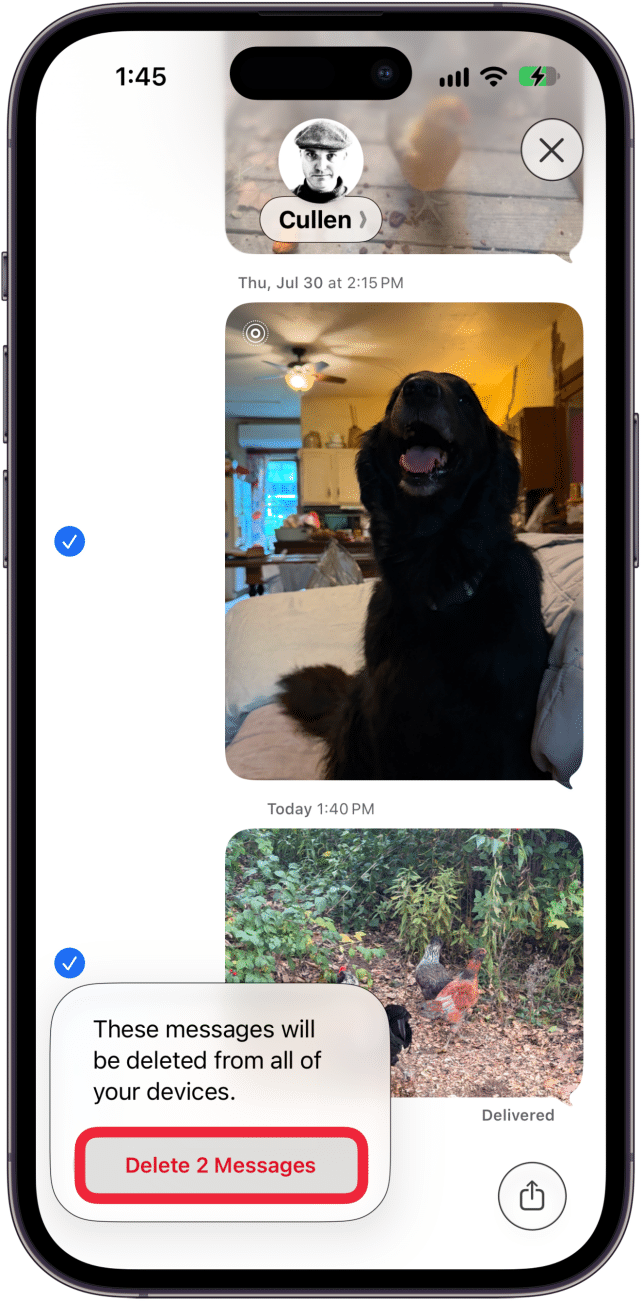
Keep in mind that this only deletes the message on your end. The messages will still exist on the other person's phone. If it has not been more than two minutes since you sent the message, you can always unsend the message instead. For more iPhone management tips, sign up for our free Tip of the Day newsletter.
More On: Deleting Email & Voicemail

Every day, we send useful tips with screenshots and step-by-step instructions to over 600,000 subscribers for free. You'll be surprised what your Apple devices can really do.

Rhett Intriago
Rhett Intriago is a Feature Writer at iPhone Life, offering his expertise in all things iPhone, Apple Watch, and AirPods. He enjoys writing on topics related to maintaining privacy in a digital world, as well as iPhone security. He’s been a tech enthusiast all his life, with experiences ranging from jailbreaking his iPhone to building his own gaming PC.
Despite his disdain for the beach, Rhett is based in Florida. In his free time, he enjoys playing the latest games, spoiling his cats, or discovering new places with his wife, Kyla.
Related Articles
 Olena Kagui

 Amy Spitzfaden Both
 Rhett Intriago


Updated Siri? A Major Redesign? Everything We Know about iOS 19

How to Use Ask to Buy to Approve Kids’ Purchases & Downloads
 Leanne Hays

Opinion: I Have Seen the Future with Apple Vision Pro & It Sucks
 Cullen Thomas

 Rachel Needell